
0:41:19
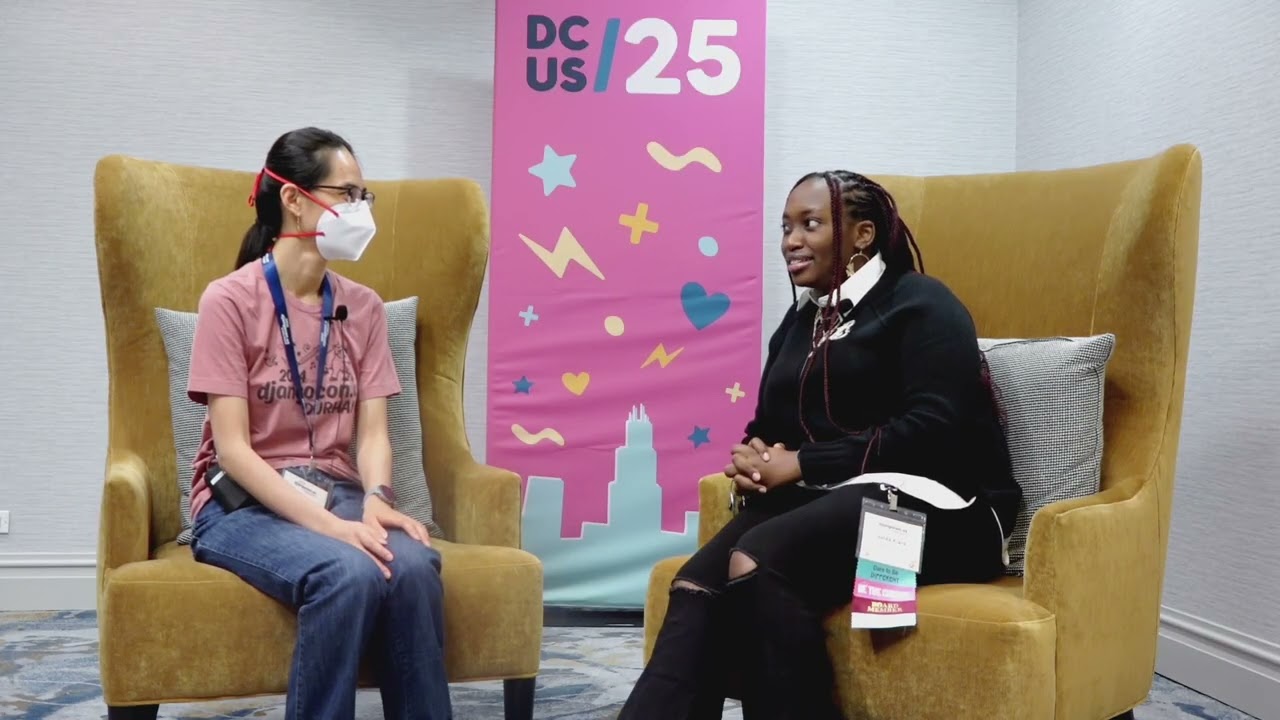
Panel Discussion: Open, friendly, and welcoming: on the history and future of... with Lacey Henschel
Published December 6, 2024
This video features Lacey Henschel at DjangoCon US 2018 in San Diego, California, USA.

DjangoCon US 2018 - An Intro to Docker for Djangonauts by Lacey Williams Henschel
If you’ve never used it before, Docker can be a little overwhelming. There is new vocabulary to learn, new commands to memorize, and new files to add to each project. Most resources fall into one of two camps: they teach you the bare bones of Docker but still leave you with too many questions to comfortably try it on your own, or they throw you into the deep end by assuming you’re more familiar with Docker than you are.
In this talk, you will find that middle ground: a talk that doesn’t assume you’re familiar with Docker and so keeps everything simple, but leaves you with enough information that you can get started as soon as you leave the room. Together, we will step through the parts of a Dockerfile and learn what they do. Then, I’ll introduce you to Docker Compose and explain why using it to run multiple containers is helpful. Finally, you will learn to run commands and execute scripts from the command line using Docker, how to enter a container and why you might need to, and what to do before you go home for the day.
Audience: Djangonauts who are curious about Docker, need to learn to use it for work or personal projects, or who seek a better understanding of containers in general. Audience members might be beginners to Python/Django or not, but they are definitely beginners to containerizing all the things.
The audience should be familiar with basic Python concepts such as variables and running things from the command line. Some basic familiarity with Django would be helpful, but beginner Djangonauts will be able to follow along.
This talk was presented at: https://2018.djangocon.us/talk/an-intro-to-docker-for-djangonauts/
LINKS:
Follow Lacey Williams Henschel 👇
On Twitter: https://twitter.com/laceynwilliams
Official homepage: https://www.laceyhenschel.com
Follow DjangCon US 👇
https://twitter.com/djangocon
Follow DEFNA 👇
https://twitter.com/defnado
https://www.defna.org/
Docker provides isolated, reproducible development environments without requiring each developer to install Python, PostgreSQL, or matching project dependencies locally. Lacey Williams Henschel explains the distinction between images, containers, Dockerfiles, and Docker Compose, using Harry Potter metaphors while also walking through the underlying commands and configuration. She shows how Docker builds images in cached layers, runs and inspects containers, preserves data with volumes, connects web and database services, and supports familiar Django tasks such as migrations, debugging, and shell access. Her main argument is that Docker becomes less mysterious once its components and commands are understood rather than copied as unexplained magic.
Summarised automatically from the transcript.
Automatically transcribed, so expect mistakes in names and technical terms.
Speaker 1: Hi everyone, is the mic positioned okay? Awesome, thank you. All right, thank you so much for coming to my talk. My name is Lacey and we are here to talk about Docker. And we're gonna do so with some Harry Potter metaphors. I do promise that if you are not a huge Harry Potter fan, the metaphors are not such that you won't be able to follow along with the talk. If you are a Harry Potter fan, hopefully these metaphors will help elucidate things for you and delight you in the process. I work for a company called Revsys, and that's kind of why I'm giving this talk. Whenever I started with Revsys a year ago, I'd never used Docker before, and I found it very, very confusing. It wasn't like anything else I'd ever used. So Um that's kind of why I'm here. I wanted to help demystify this for you because it was very mysterious for me. So one of the things that was confusing for me is what really is Docker?
Speaker 1: We're we're kind of used to working in virtual environments. Some of us work in virtual machines, but Docker asks us to understand these concepts in a very, very different way. And that's a really large learning curve for a lot of people. In short, it feels kind of like magic, and most of us don't really like things that are too magical, because then we can't understand them, they're difficult to debug, and it's harder for us to do our jobs. So some of the things that I really love about Docker is that it helps you separate your dependencies, which is very handy. It shares your operating system, so it's pretty lightweight. It puts all of your team members on the same page when it comes to your development environment. So I've been in situations several times before Where um a coworker was helping me debug something, but my environment had a weird setting that was the problem.
Speaker 1: If any of you have ever coached at a Django Girls workshop on installation night, we see a lot of these Issues as well. With Docker, you don't have those. Everyone's doing the exact same thing. And you don't need to install any Python at all. You can skip having a system Python entirely. So if you have a job where you work on multiple projects or you're an open source maintainer and you have multiple projects, keeping track of all these different Python installations can be a little bit challenging. And with Docker, you can just skip that step. However, as said before, learning all of this is kind of a learning curve. So this talk really is designed for people who have had very little to no experience with Docker. It's going to be pretty basic, pretty low level. But the hope is that whenever you walk away from this talk, you'll be able to fork a project that I'll give you, play around with it, get Docker running on your own machine, and learn to love it as much as I do.
Speaker 1: But I do want to talk first about the place of virtual environments in a Docker setup. I'm not telling you to totally ditch virtual environments in favor of Docker. I still use virtual environments a lot, mostly because I'm really lazy and I like the work-on commands, so I can switch between Projects more efficiently. But you know, with a virtual environment, you still do have to have a system Python installed, which can get a little hairy depending on the number of projects that you work on. So, we're gonna start out by talking about polyjuice potion. Polyjuice potion in the Harry Potter books is this potion that you use. To turn into someone else. So you brew a potion, you put a piece of that person's hair into this potion, and then you turn into that person. This is a lot how Docker images and containers work. So we're gonna use that analogy. In this analogy, Docker is the potion itself.
Speaker 1: It's the thing that you've brewed. It's the vessel through which everything else happens. When you start a project in Docker, you first start out by defining an image. The image is like that person's hair that you want to turn into. It defines all of the basic software for your project. A more official explanation is that it's the executable that contains all the packages that your project needs. The container is you. Docker also has this concept called a container. A container is a copy of your image that's running around actually running your project. So whenever you drink the polyjuice potion, you've had this potion that had someone's hair in it, you turn into that potion that person, and you're a copy of them running around and causing mischief and investigating. So, just to review this vocabulary, we've learned about the concept of an image and the concept of a container.
Speaker 1: The image is the executable, and the container is the runtime instance of that image. When you're using Docker, you'll also become familiar with a new file. There's a file that you'll use called a Docker file, and it lives in the same place in your code as your manage. py file. And that defines all of the specifics about the image that you want to use. So in that way, it's the DNA of your project. It is the hair, it tells you, or it lets you tell Docker what version of Python that you want to use, what environment variables you'll need, it installs things for you. So now we have this new vocabulary word that I'll just keep on the slide for a moment. So restated, you use this hair to turn into someone else, and then you drink that potion to trans Transform the way that you look, you use the Docker file to tell Docker how to build your image, and then you run your project in a container.
Speaker 1: So that's the analogy more explicitly, if that helps you. So, this is the basic layout of a Docker file, and we're gonna go through this line by line because I don't like magic, and a lot of tutorials will tell you just to copy and paste, and that keeps you from understanding things more fully. So the first line specifies the image that you want your image to be based on. You don't have to start your image from scratch. You can give your image apparent. In this case, we're going to base our image off of the Python image. In the Docker Hub, there are all kinds of images published by all kinds of different organizations and people, and Python has put their images up there tagged with the specific version so you can use the one you need. Env Python Unbuffered 1 creates an a variable called Python unbuffered, and setting it to 1 makes it truthy
Speaker 1: because 1 is truthy. Zero is falsy, and this means that you'll be able to see your output in the console whenever you're running your project. Python don't write bytecode keeps Docker from writing PYC files, which helps keep your Docker image nice and tidy. Now, your container will have its own directory structure. So you'll have to copy your requirements file from your machine into your container. And this line will do that for you, but it puts it in a special directory called code. Since your container has its own file system, you don't want to just dump all of your files directly in there. You want to put them in their own place so that they're easier for you to find if you need to hop into your container And look around. Then you install your requirements with a command that you're pretty used to, you just have to prefix it with run, and you copy the rest of your files into that code directory.
Speaker 1: This handy line worked dirt sets the working directory of your container as code. So whenever you're in the container, you can run the commands like manage. py create superuser without having to prefix it with code to make sure that you're in the right directory. directory. Then you have to expose your containers port 8000 so that you can use your browser locally. And then you have to run your server. So you type out this command to tell Docker to go ahead and and run manage. py run server the way that you're using So Docker will do this for you. So now we're actually ready to start using our potion. We're going to um learn some things here. So you you run Docker build to build your image so that you have this thing that you can base your container off of. And when you run Docker build, you will see a whole lot of output.
Speaker 1: And so Docker is executing all of the steps that you defined in your Docker file. And at the bottom, it will say successfully built, and then this kind of nonsense string. That nonsense string is the name of your image, in this case AD, FBC, et cetera. But that's not super intuitive for most people. So Docker allows us to give our images a specific name. So So we can name this image and get to it more easily, which is really helpful. But then you see that it that Docker will also go ahead and tag our image once we name it. So we've seen those tags before. We referred to the 3. 6 tag of the Python image. If you don't provide a specific tag, Docker will just tag it latest. But tagging things is the way that you can manage like specific releases of your image the way that Python does with their
Speaker 1: Versions. Now I mentioned that Docker builds your image with particular steps. Docker is layered, and that's a really important concept to understand. Every line in your Docker file is its own layer in your image. And you can see this whenever Docker is building your image. You've got step one, which will build, step two, and it will go through these one at a time. So it's very explicit about what it's doing. What this means is that the very first time that you build your image, Docker will build everything by hand. It'll make all of those layers from scratch. The second time through, whenever you're building your image, if you haven't changed anything, Docker doesn't care about building it from scratch for you. It'll go ahead and use a cache so that it doesn't have to do all of that work over again. But if you change a line in your Docker file, Docker will rebuild that particular layer
Speaker 1: and all of the layers that come after that. So, what that means is that say we we add something new to our requirements file, whenever Docker is building, before it gets to that step, it will use a cache and it won't try to execute those steps from scratch. But once it gets to installing the requirements, it knows that something has changed and it will download all of those requirements again fresh and then it will build steps you know five, six, seven, eight from scratch as well. So now we're finished talking about polyjuice potion, and we're gonna talk about some charms, some spells. So this is all about how you interact with your containers whenever you're actually running your project in development. You run the Docker images command to see the images that you have. So we can see our Hogwarts image and its original image ID.
Speaker 1: We can also reveal our containers by running Dockercontainer LS. This will show us any containers that we currently have running, and we can see right now that we don't have any running because we've built our image, but we haven't done anything with it. So in order to do something with that image, we run Docker run. Docker run dash P 8000 colon 8000 Hogwarts will execute everything that we had in that image. It will it will actually start making a copy of the container that will exist for us. So if we run that show us our containers command again, then we will see all of these, or not all of these, or There's only one right now. We will see this container that we've created. So we can see the image it's based on, the command that it's running, and some other metadata about this particular container.
Speaker 1: We can also hop into our container specifically using the Docker exec command. So execing into your container is docker exec dash IT and the The ID of your container, and you can get the ID of your container from Dockercontainer LS. And then shell. And once you're there, you can see that you're at the root, and you can also see that you're right there in your code directory. Because you specified that with the worked or command in your Docker file. So whenever you reveal the contents of this directory, you'll see your Docker file, your manage. py file. So you can see that your code was copied over the way that you told it to in your Dockerfile. If you go up a level, then you'll be able to see that you have that code directory. It's the second one there in the third line. But the container also has its own set of directories.
Speaker 1: It's doing its own thing. Most of the time you won't really need to worry about that, but I want you to know about it because sometimes you will need to hop into your container to poke around and debug some things. Hop out of your container like can with control D. And then if we run Docker container LS again, even though we've hopped into our container to look around and now we've hopped out, we can see that nothing changed with our container. We didn't stop it, we didn't start it, we didn't touch it, we just kind of poked at it and nothing changed. If we wanted to stop our container, that's a pretty intuitive command. Docker stop in the ID of our container. And then Docker start to restart the container. Whenever you stop a container, the container still exists. It just sort of pauses for a moment. And then Docker start will restart that particular container.
Speaker 1: So you're not creating a fresh copy. Docker kill, however, will trash your container entirely and kill it with fire, and you will never see it again. Something to keep in mind about Docker kill versus Docker Stop. Is that with DockerStop, you still have all of your data. So if you've created test data, you've created a super user running DockerStop and then Docker start, you'll still have access to all of that. Docker kill also kills your data, but I'll tell you a little bit later how you can get around that. But that's a pretty important thing to know. So one of my favorite features of Docker that makes it so pleasant for Django development is Docker Compose. So this particular command, this Docker run-p 8000, 8000 Hogwarts. is kind of a lot to type. It's not super flexible.
Speaker 1: It's not very intuitive. And you might be thinking like, why would I type this whole command whenever I could just type manage. py runserver and my life would continue to be simple. And this is where Docker Compose comes in to help you out with that. So Docker Compose is this sort of add-on to Docker. It's free. If you're on a Mac then it's included with Docker. If you're on another system, it's a separate download. And the magical thing that it lets you do is run more than one container at once. So you can have separate containers for your database, for your web server, for other things that your code might be doing. And you can also relate those containers to each other. Which can be very handy, and I'll go through that in a moment too. So just to put a Harry Potter in metaphor in here because I have to, Docker Compose is kind of like Hermione 's magical bag. She The character in Harry Potter has this bag that expands to fit anything that she possibly needs.
Speaker 1: She puts a tent in there and everything. Docker Compose is like that. It lets you create just a laundry list of all of the things that your project is going to be. going to need and have separate containers for them. So this is an example of a Docker Compose file. Whenever you're using Compose, you'll have a Docker file the way that we talked about earlier, but you'll also have a separate file called Docker Compose. yaml. You start out with the version number. Three is the most current version of Compose, so that's the one that we're using. And then you define your services. Your services are the containers that you want to start whenever you start your project with Docker Compose. For the purposes of this example, we are using a database container and also a web container to separate our data from our code.
Speaker 1: Now, one of the other things I really love about Docker is that just like I don't have to have a local Python installation, I don't have to have a local Postgres installation either. I can tell Docker to go out, grab the most recent Postgres image or a specific tag if I want to use that, and then it will all just work. I don't have to configure anything locally other than changing my settings. py file So that's a really, really huge plus for me. I do have a sample project that I'll link to at the end that shows the changes that you need to make with your settings. py file. But just know that you are changing your database backend whenever you do that in Compose, so you have to do The related things that you have to do. Now we jump into our web service, and this allows us to do a lot of things. We have a lot of options. Here. For example, we can run more than one command.
Speaker 1: So if we want to, we can run migrations every time we start our project and also run our server. So we can skip a step there. And Compose also introduces this concept of a volume. So I told you earlier that whenever you kill your container, you kill all of the data that's associated with your project, like your super user or any um test records that you created. If you use a volume, then that's not true anymore. You can stick your data in a special volume that will persist between containers. So you kill your container and then you restart a new one, but you still have all of that test data that you created. You can map your containers port 8000 to your own local machines port 8000. So you skip that step as well from your Docker
Speaker 1: run command that we were going through earlier. And then we can relate the web container to the database container. So we can say that our web service depends on our database service. We really need those to work together in order for the project to work. So Docker will start the database container first and then start the web container second. Now, what this means is that the last line in our Docker file that was running one run server, we don't need that anymore, so we can kill it with fire. And we can move on. The way that you use Compose, instead of running Docker run, you just run Docker Compose up, and it will take care of both building your image and also starting your project. If you've already built that image once before, just like Docker Build will do, it won't rebuild it if nothing has changed.
Speaker 1: It will use that cache, but it will also go ahead and rebuild things of something Changes as well. If you want to make absolutely sure that your image gets rebuilt, just pass the build flag. Once you run Docker Compose up, you'll see a lot of output and you'll see some things that confirm what I've talked about already. So you You see that the database service starts first, you see the web service, and then you see that they get attached. Docker relates them to one another. We can also see that our migrations were performed, and that our server started, so we're ready to go. And we can see that we do now have two containers instead of run whenever we run Dockercontainer LS. So we see that we have our um Postgres image and our web image. And we can also see that they have much better names now.
Speaker 1: They still have those container IDs, but they also automatically get names that are based on the name of our project and also the name of the service, which is a lot easier to handle. And we can run regular commands like we're used to from the command line. So if you wanted to run make migrations, you have to prefix things with Docker compose run and the name of the service that you want to touch, but then you can run everything the way that that you're used to. This is a lot to type, but you you can also map these as shortcuts, so you can um create a a shortcut phrase that will do all this for you, and then you can just run the manage. py make migrations after that. And then that RM flag means trash this container whenever I'm done with it. So whenever you run something like this and you've already run Docker Compose up, Docker is going to start a second web container for you to run these migrations.
Speaker 1: All it's doing is running those migrations and you already have your container that's running your server, so you don't need the migrations container anymore. So at passing the RM flag will go ahead and remove that container so that you don't clutter up your your system with that. You can hop into the shell the way that you're used to with this in in the same way, which is pretty handy. So basically anything that you're used to To doing with a Django project from the command line, you can still do with Docker as long as you prefix it with Docker Compose run the name of your service. And then you just proceed as normal. You can stop and start your Docker containers at will. Um, so you can stop specifically the web container, restart it specifically Specifically, this is very handy if you're using something like celery.
Speaker 1: You can have a specific celery container. And if you're not working on the celery portion of your project, you can stop only the celery container so that you can move on with your life and you don't get all of the output from you know syncing something every five minutes or reaching out to an API every two minutes or something like that. At the end of the day, when you're ready to go home, you run Docker Compose down, and Docker will shut down your containers and trash them for you. And then if you want to check out a project and kind of play with this yourself, this will link you to a GitHub repository. I highly encourage you to fork that repository and play around with it, get to know it a little bit. If you have any questions, please feel free to ask me about those or file those as issues. And I want to leave you with this quote from Albus Dumbledore. It is the unknown we fear when we look upon Docker, nothing more.
Speaker 1: I do genuinely hope that this talk helped demystify Docker for you a little bit. I really love it, but that was a journey for me to get to loving it. So I understand if you've been a little bit frustrated with Docker. In the past. If that's been you, I would really love to talk with you about that and help make this make a little bit more sense to you. I will tweet all of these out and I'll also post my slides, but there are a lot of resources That are pretty friendly to learn about using Docker. Some of these go specifically into the Docker parts of things, some of these are more the kind of Django side of things, but hopefully they'll help coalesce things. for you. And again, I'll tweet these out. I'll also post my slides so you'll be able to link directly to these. That's all I have for today. So thank you very much.
Speaker 2: Thank you for the talk. It is demystifying. Do you have any advice on um how to use the debugger while doing Django development?
Speaker 1: So I usually use um like PyTest set trace whenever I'm debugging. I um I'm I'm really bad about using the the built-in Python debugger. Um but my experience is whenever I run, you know, Docker Compose run RM. Web, um PyTest, for example, it will go ahead and stop at the set trace and allow me to poke around the way that I'm used to. So it it doesn't really change things. I would assume that using the regular Python debugger would be Similar. But I would I would like to sit down with you and kind of step through that and see if that's true.
Speaker 3: Hi, thank you very much for that talk. So container data files that you've generated um in the container, how would you get that out to your system? And vice versa, if you have files in your system that you need for the container, how would you get that in?
Speaker 1: So if if you have like a CSV file, for example, that that you need, then you would just put that in your project directory the way that you normally would. And then you have access to it that way. If your system generates files, then my experience is That they show up in your project directory. And that still exists locally. Like they won't be just in the container, they'll also be in your local file system.
Speaker 4: Thank you. Quick question about pulling dependencies that maybe aren't in PyPy or like in a local mirror, you need SSH authentication. How do you uh do that in your Docker build without hard coding secrets in the Docker?
Speaker 1: So um there is a way to to use Docker secrets to kind of manage that. Um it's a little bit I can't really like sum it up in 30 seconds, but there is a way to do that. Um and I see Steven here, I will also be able to To talk to you about that. But yeah, so it it involves setting up some Docker secrets, which is sort of its own talk. But there is a way to do that. And then if um if you're comfortable kind of hard coding things, then we have a um RevSys has a a a generator where you can put in the repository and it'll sort of spit out like for GitLab versus GitHub, et cetera, what you need. But if you obviously you don't really want to hard code those tokens, so Docker secrets would be the way to go with that.
Speaker 5: I think we're probably out of time. Alright, well thank you so much. Um give Lacey hand a comment.
An image is the executable containing the packages and software a project needs. A container is a running instance or copy of that image.
Discussed at 3:29A Dockerfile defines how Docker builds the project image, including the Python version, environment variables, dependencies, copied files, working directory, exposed port, and startup command.
Discussed at 4:18Base it on an appropriate Python image, set Python-related environment variables, copy and install the requirements, copy the project into a working directory, expose port 8000, and run Django’s development server.
Discussed at 5:09Use `docker build` to create the image and `docker run -p 8000:8000` to start a container from it. You can inspect images and running containers with `docker images` and `docker container ls`.
Discussed at 6:43Each Dockerfile instruction creates a layer. Docker caches unchanged layers, but when a line changes it rebuilds that layer and every layer after it; for example, changing requirements causes dependencies and subsequent layers to be rebuilt.
Discussed at 8:16Docker Compose lets you define and run multiple related services, such as separate web and PostgreSQL containers, from a YAML file. It can build the image, start the services in dependency order, run migrations, map ports, and connect the services.
Discussed at 12:56Use a Docker volume to store data outside the container’s temporary filesystem. The volume persists when the container is killed and a new one is started, preserving things such as test records and superusers.
Discussed at 15:18Prefix the command with `docker compose run` and the service name, then run the usual Django command. The `--rm` option removes the temporary container afterward, and the same approach can be used to open a shell.
Discussed at 17:34Yes. Running a command such as `docker compose run --rm web pytest` allows execution to stop at `set_trace()` so you can inspect the application in the usual way.
Discussed at 20:53Put input files such as CSVs in the project directory as usual, and they are available to the container. Files generated by the system appear in that project directory and remain available on the local filesystem.
Discussed at 21:42Docker secrets can manage the authentication needed to access private repositories or package mirrors. The speaker notes that setting this up is more involved, but recommends secrets rather than hard-coding tokens.
Discussed at 22:19Note: We understand that names change, people change, and bodies change. We respect each individual's journey and privacy. If you have any concerns about a video or need us to remove content, please don't hesitate to contact us. We will handle your request with care and promptly address any issues.
Published December 6, 2024

Published September 30, 2024
Published June 21, 2018

Published July 15, 2026

Published July 15, 2026

Published July 15, 2026

Published July 15, 2026

Published July 15, 2026
Published July 14, 2026